

Get the free AI Agent Building Blocks ebook when you subscribe.

We work in tech. The least we can do is use tech in our favor.
I’m sure you already use Gihub Copilot, ChatGPT, and similar tools.
In this post, I’m sharing 10 other tools I use to boost my productivity, and I’m sure you don’t know about all of them.
Tools to Capture Knowledge for Software Engineers
In the Zettelkasten method, there are 2 types of capture notes:
Fleeting notes → Quick ideas or notes. Prioritize capturing them fast, despite not being in the nicest form
Literature notes → Knowledge from books and courses. It’s hierarchical and scoped to that resource, but not interconnected with your existing knowledge from other sources.
For both of these, I use Notion.
I have an inbox database where I can quickly write an idea that comes to mind. I process them by the end of the week
I have a content database where I record any long-form content I consume.
Tools to Process Knowledge for Software Engineers
I have always approached knowledge like they taught me as a kid in school: Making summaries of the hierarchical lessons of each subject. The exams were also hierarchical so there was no need to interconnect lessons or subjects.
But it’s a waste that I can’t connect the explanation of replication techniques for databases from one book with a diagram I found in another book.
I process my knowledge in another Notion database. In the Zettelkasten world, this one is the Slipbox. I may reference the literature notes for depth in a particular topic.
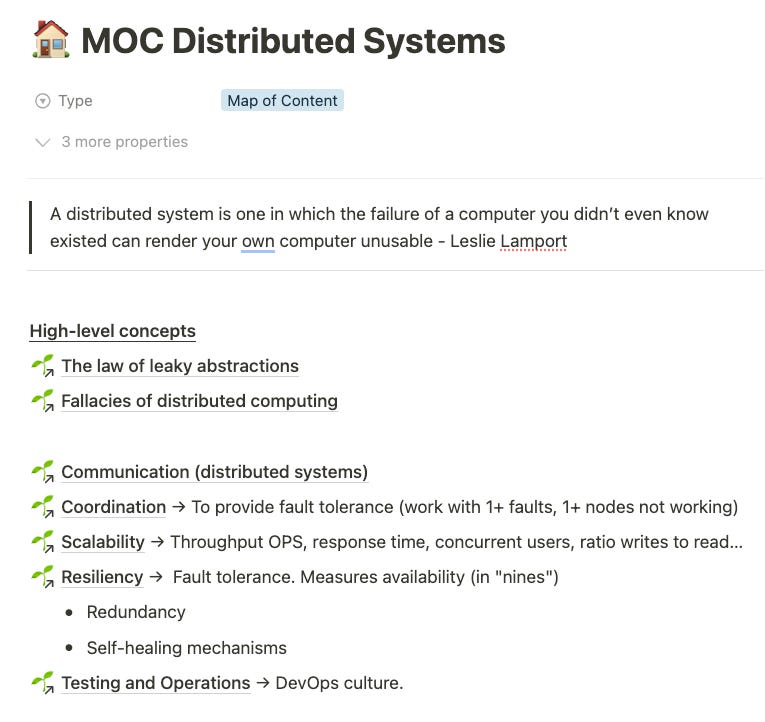
These notes are not hierarchical, but interconnected ideas. The only source of hierarchy is creating entry points, called MOCs (Maps of Contents). These are the place to start looking if I don’t remember the name of a particular note.
If you want to learn more about the Zettelkasten method, let me know in the comments or check the book How to Take Smart Notes. The method was created by Niklas Luhmann, an inspiring figure for me because of his high throughput as a researcher.
Here’s an example of a MOC note from my Slipbox
Right now I consider Notion the best tool for it. I started using Obsidian, which is more oriented to the Zettelkasten method. But I decided to switch to Notion where I had a big chunk of my life.
Notion is like MacOS and Obsidian is like customizing your own Linux distro from scratch. You start very motivated and later it’s a pain.
Other tools that you may like are Evernote or Roam Research. I’d rather have everything in one tool than 10 tools with scattered information.
I’m in the process of growing my Zettelkasten Slipbox in Notion, enough to pay for Notion Q&A and query a chatbot rather than organizing with MOCs.
Improve your Lookup Speed
Alfred (MacOS only) is my tool of choice. These functionalities form my productivity toolkit:
Clipboard history
Because I know I typed that email just yesterday and don’t want to find it again. And because instead of doing a sequence of copy + paste + copy + paste… (usually between different applications), I can copy 10 times and paste another 10 times, switching applications just once.
Browser bookmarks
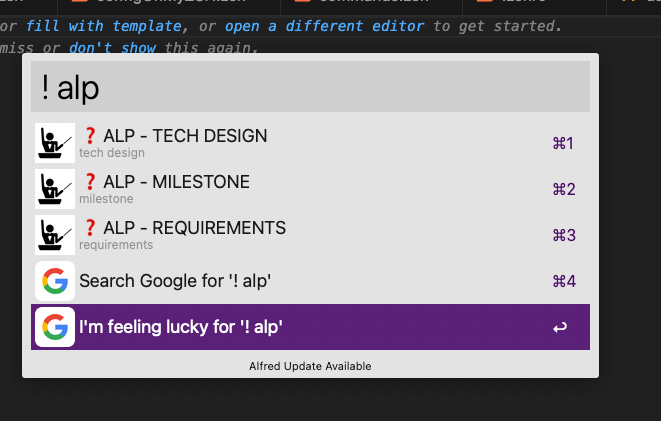
I use this as project knowledge management. For any software project, we have some links that are always the same. Imagine for the project “Compact View”, I would have bookmarked:
“CV requirements”
“CV tech design”
“CV runbook”
I just have this a couple of keystrokes away by opening the Alfred Spotlight search bar
Web Search
Most web applications receive parameters in url params. This makes the URL sharsearchese else.
It also makes the search much faster.
At work, we use the in-house task management system, and employees have their internal aliases. With Alfred, I have web searches for:
ltask alias→ “Last task assigned to alias”, which opens me new browser tab totheinternalsystem.amazon.com/search?asignee={alias}ltaskr alias→ “Last task requested by alias”, which opens me new browser tab totheinternalsystem.amazon.com/search?requester={alias}
I have dozens like this. It makes it very easy to use those web applications, I can check the tasks from any employee quickly just by opening the Alfred search bar.
Repeated communications
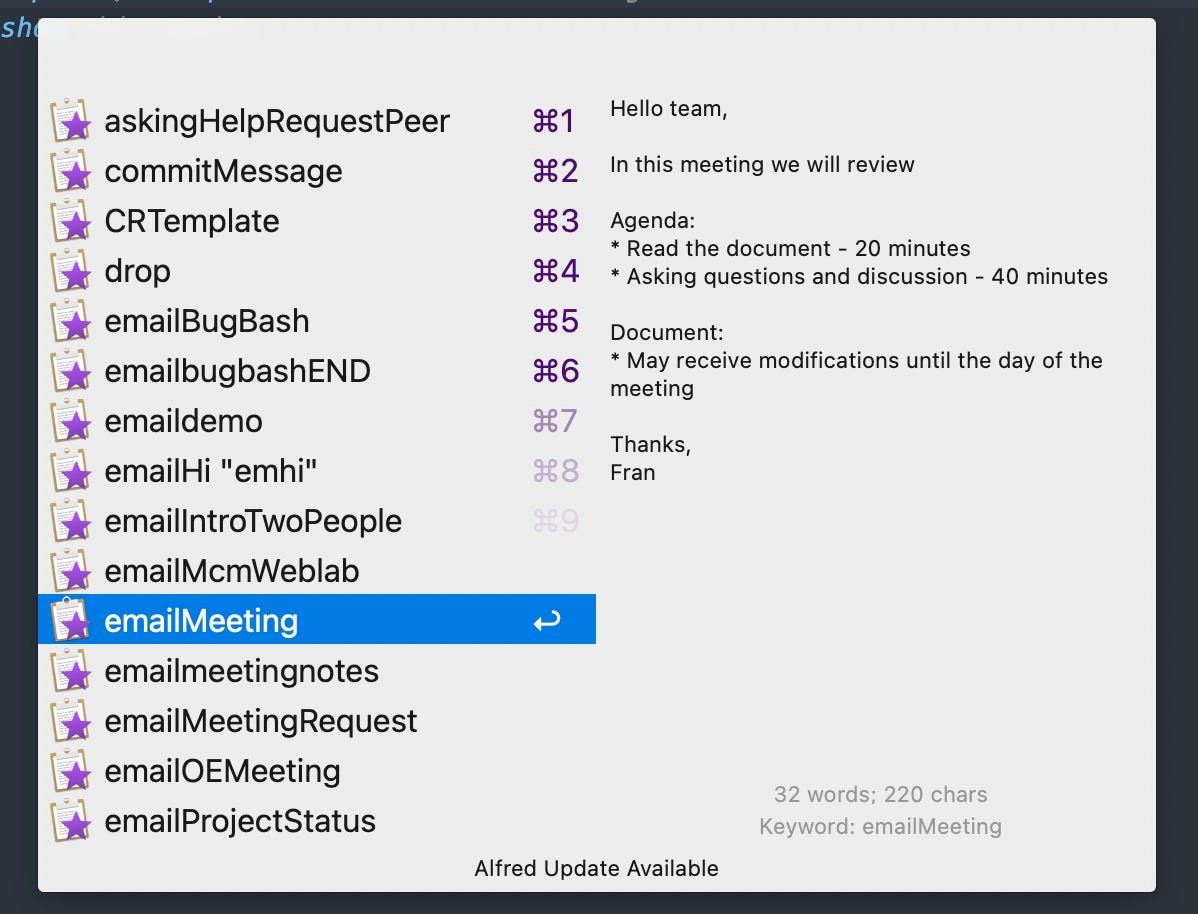
I’m not writing every email where I say that we are meeting to review X document and the agenda is Y minutes of reading and Z minutes of discussion.
They are all the same.
I have my template and I just fill it with the correct data.
Other people would start typing every email and after some time they send emails without an agenda.
Templates are a forcing function for good-quality emails with proper structure
You could have a bunch of files that you have to find, copy, and paste into the email client.
I prefer using Alfred snippets, with a shortcut, and typing a few letters to identify my snippet I just paste it immediately. Zero friction.
Your Keyboard
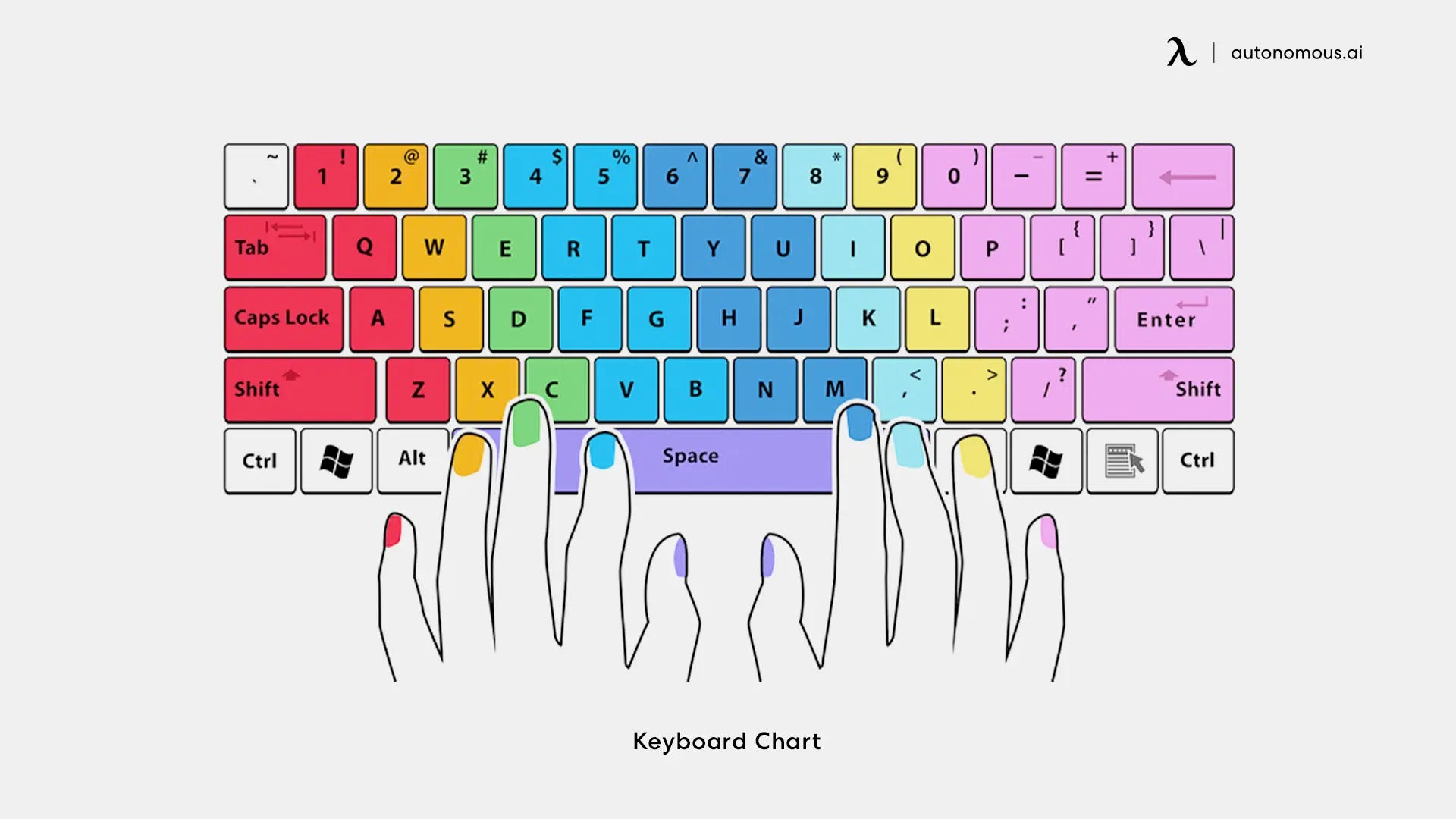
Have you noticed some small marks on your F and J keys on the keyboard?
Those are the keys where you should put your index fingers for proper typing. If you are moving your hand to your mouse, your hand to reach the Function keys or even the Backslash/Enter/Arrow keys, you are losing the position.
I remap my keyboard to keep my hands always in position.
Just check the image below. There are way too many responsibilities for my right-hand pinkie finger.
Let’s start by using Alfred again as an App switcher instead of finding the app with your mouse.
Define a shortcut to switch your focus to a particular app (or open it if it’s not open).
That’s a huge productivity boost. I have seen people with 20 windows on the same MacOS virtual desktop, but there’s no way to find each. You can’t afford to take 5 seconds to switch from one app to another.
The downside is that most shortcuts are already taken in one app or another.
That’s where Karabiner elements come into play.
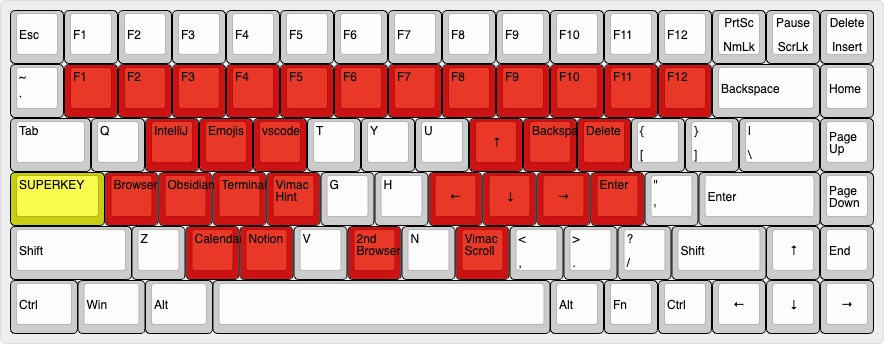
I remapped my caps lock key as a “SUPER KEY”. Hitting it enables a new layer for the keyboard.
Then I map things like SUPER + A to my browser in Alfred.
I also put closer to my hands the keys that I use more often.
Here’s what my extra layer looks like right now:
There are keyboards that you can remap in hardware. This ensures that it works on any computer you use. The downside is that you need to carry that keyboard.
I have my external keyboard but I don’t carry it to meeting rooms in the office. By using a software keyboard mapper I can have the same in my external keyboard as my laptop’s keyboard